Module 3: Data tables, search markers, and visualizations
In this module, you'll explore how recipes can do more than transform code. They can also search for patterns, extract insights, and produce rich data outputs. One of the most powerful ideas in OpenRewrite is that these “searches” are semantic. Recipes operate on the Lossless Semantic Tree (LST), so searches aren’t limited to text or regex matching. They can match based on types, method signatures, and relationships in the code, even if that information is buried levels deep.
Key concepts
Data tables
Data tables are structured outputs that recipes can produce alongside (or instead of) code changes. This output comes in the form of tabular data (like a spreadsheet) that can capture insights discovered during recipe execution.
Data tables are particularly useful when you want to:
- Extract attributes or inferences from code
- Generate reports about your codebase
- Analyze patterns across many repositories
- Track metrics like security vulnerabilities or technical debt
Recipes may include recipe-specific data tables with a custom set of columns defined by the recipe, but most recipes also include a few data tables by default:
- Recipe performance table: Provides insights into the recipe's execution (available for all recipes)
- Source file table: Information about changed files (available when changes are made)
- Errors table: Includes details of all errors produced by a recipe run (if there are errors)
- Search results table: Available for any recipe that returns search results (see next section)
Search result markers
For search recipes, in addition to (or instead of) a data table, recipes may add search result markers to matching LST elements so that matches are highlighted directly in diffs. When present, search markers:
- Visually highlight matches in the code diff view
- Allow other recipes to act on the marked elements
- Provide context about why something was marked
In code views, search markers typically appear in comments as ~~> indicators near the matched code, and the corresponding matches are also listed in the SearchResults data table.
Visualizations
Visualizations provide graphical ways to explore the data produced by recipes. They can be:
- Complex diagrams showing relationships between nodes
- Interactive charts for exploring dependencies
- Visual representations for exploring large datasets
Not all recipes produce visualizations, but those that do offer powerful ways to understand your codebase at a glance.
Exercise 3-1: Run search recipes and export data tables with the CLI
In this exercise, you'll run search-oriented recipes with the CLI and learn how to review results via search markers and exported data tables.
Goals for this exercise
- Run search recipes with the CLI
- Review search results markers (when present)
- Export recipe data tables with
mod study
Steps
Step 1: Sync sources and build LSTs
- Navigate back to your workspace directory:
cd ~/moderne-workshop
- In the first module, you synced the source code from the
Defaultorganization and applied some changes to it from a recipe run. Because of that, your LSTs no longer accurately reflect the current code state. To make sure you have the most up-to-date LSTs, run the following command to build them locally:
mod build .
Building LSTs may take a few minutes to complete. It also requires a local JDK installation because the CLI uses your build tooling to parse and type-attribute the code. If you run into JDK-related errors, verify java -version works and that your environment is using a supported JDK (Java 17+ recommended for this workshop).
Reference output
   ▛▀▀▚▖  ▗▄▟▜
   ▌   ▜▄▟▀  ▐
   ▛▀▀█▀▛▀▀▀▀▜
   ▌▟▀  ▛▀▀▀▀▜
   ▀▀▀▀▀▀▀▀▀▀▀
Moderne CLI 4.9.2

⏺ Reading organization

Found 1 organization containing 11 repositories (1s)

⏺ Building LST(s)

▶ apache/maven-doxia@master
    Build output will be written to build.log
    > Download from Moderne
        ⚠ Failed to download the LST from Moderne. Proceeding to build the LST locally
    > Step 1 - build with Maven
        Selected the 1.8.0_462-zulu JDK for maven-doxia
    > Step 2 - build resources
        Selected the 25.0.1-tem JDK for maven-doxia
    ✓ Built maven-doxia-20260105160736327-ast.jar
    Cleaned 1 older builds
▶ awslabs/aws-saas-boost@main
    Build output will be written to build.log
    > Download from Moderne
        ⚠ Failed to download the LST from Moderne. Proceeding to build the LST locally
    > Step 1 - build with Maven
        Selected the 25.0.1-tem JDK for aws-saas-boost
    > Step 2 - build resources
        ⚠ 18 sources produced parse errors
    ✓ Built aws-saas-boost-20260105160812125-ast.jar
    Cleaned 1 older builds
▶ finos/messageml-utils@refactor/common-static-analysis
    Build output will be written to build.log
    > Step 1 - build with Maven
        Selected the 1.8.0_462-zulu JDK for messageml-utils
        ⚠ 1 source produced parse errors
    > Step 2 - build resources
    ✓ Built messageml-utils-20260105160823563-ast.jar
    Cleaned 1 older builds
▶ finos/spring-bot@refactor/common-static-analysis
    Build output will be written to build.log
    > Step 1 - build with Maven
        Selected the 17.0.12-tem JDK for spring-bot
    > Step 2 - build resources
    ✓ Built spring-bot-20260105160848195-ast.jar
    Cleaned 1 older builds
▶ finos/symphony-bdk-java@refactor/common-static-analysis
    Build output will be written to build.log
    > Step 1 - build with Gradle
        Selected the 17.0.12-tem JDK for symphony-bdk-java
    ✗ Failed to build an LST.
▶ finos/symphony-wdk@refactor/common-static-analysis
    Build output will be written to build.log
    > Step 1 - build with Gradle
        Selected the 17.0.12-tem JDK for symphony-wdk
        ⚠ 2 sources produced parse errors
    > Step 2 - build resources
    ✓ Built symphony-wdk-20260105161010794-ast.jar
    Cleaned 1 older builds
▶ Netflix/photon@refactor/common-static-analysis
    Build output will be written to build.log
    > Step 1 - build with Gradle
        Selected the 21.0.7-tem JDK for photon
    > Step 2 - build resources
    ✓ Built photon-20260105161032281-ast.jar
    Cleaned 1 older builds
▶ Netflix/ribbon@refactor/common-static-analysis
    Build output will be written to build.log
    > Step 1 - build with Gradle
        Selected the 1.8.0_462-zulu JDK for ribbon
    ✗ Failed to build an LST.
▶ openrewrite/rewrite-recipe-bom@main
    Build output will be written to build.log
    > Download from Moderne
        ⚠ Failed to download the LST from Moderne. Proceeding to build the LST locally
    > Step 1 - build with Gradle
        Selected the 21.0.7-tem JDK for rewrite-recipe-bom
    > Step 2 - build resources
    ✓ Built rewrite-recipe-bom-20260105161316582-ast.jar
    Cleaned 1 older builds
▶ spring-projects/spring-data-commons@refactor/common-static-analysis
    Build output will be written to build.log
    > Step 1 - build with Maven
        Selected the 25.0.1-tem JDK for spring-data-commons
    ✗ Failed to build an LST.
▶ spring-projects/spring-petclinic@refactor/common-static-analysis
    Build output will be written to build.log
    > Step 1 - build with Gradle
        Selected the 17.0.12-tem JDK for spring-petclinic
    > Step 2 - build resources
    ✓ Built spring-petclinic-20260105161438545-ast.jar
    Cleaned 1 older builds
Done (7m 33s)

Built 8 repositories.

⏺ What to do next
    > Run mod run . --recipe FindParseFailures to analyze the parse errors
    > Run mod run . --recipe=<RecipeName>
    > Analyze build results with mod trace builds analyze . --last-build
    > Run mod log builds add . logs.zip --last-build to aggregate build logs

MOD PARTIALLY SUCCEEDED in (7m 33s)
This may take several minutes. Feel free to continue to the next exercise and come back once it finishes.
You might still see The latest LST is not up to date for some repositories even after running mod build . (for example, if a repo failed to build, the checkout changed after the build, or the CLI used a downloaded LST that doesn’t match your local sources). You may also see some repositories to fail to build the LST. In either case, recipes can still run on repos with LSTs, so you can safely continue the exercise.
By default, mod build may try to download LSTs from Moderne if they’re available. To force a local build, use mod build . --no-download.
Step 2: Run a search recipe that produces a report
- Run a search recipe to find specific method calls:
mod run . --recipe FindMethods -PmethodPattern="java.util.List add(..)"
The -P flag sets a recipe option at runtime, similarly to how you set options under a recipe in YAML in Module 2. Here, we’re setting the methodPattern option for FindMethods to target a specific method signature. For more detail on the pattern syntax, see the OpenRewrite method patterns reference.
This is a search-only recipe and should not modify source code.
- Examine the output and open the fix results diff for any repositories that produced results.
- If search markers are present, matches will be highlighted in the diff output (for example
~~>). - If the recipe produced data tables, you’ll see suggested
mod studycommands you can run next.
- If search markers are present, matches will be highlighted in the diff output (for example
Step 3: Export data tables with mod study
After running a recipe, the CLI will suggest commands to view data tables:
⏺ What to do next
    > Click on one of the patch links above to view the changes on a particular repository
    > Run mod study to examine the following data tables produced by this recipe:
          > mod study . --last-recipe-run --data-table MethodCalls
          > mod study . --last-recipe-run --data-table RecipeRunStats
          > mod study . --last-recipe-run --data-table SearchResults
          > mod study . --last-recipe-run --data-table SourcesFileResults
- Export the
MethodCallsdata table:
mod study . --last-recipe-run --data-table MethodCalls
Reference output
   ▛▀▀▚▖  ▗▄▟▜
   ▌   ▜▄▟▀  ▐
   ▛▀▀█▀▛▀▀▀▀▜
   ▌▟▀  ▛▀▀▀▀▜
   ▀▀▀▀▀▀▀▀▀▀▀
Moderne CLI 4.9.2

⏺ Reading organization

Found 1 organization containing 11 repositories (1s)
Found recipe run 20260105161657-MFFqf


⏺ Building CSV output for each organization

▶ Default
    ✓ Data table produced
Done (1s)

⏺ Converting to Excel for each organization

▶ Default
    ✓ Added 662 rows
    ✓ Data table produced
Done (3s)

Data tables for each organization with rows are linked above

MOD SUCCEEDED in 3s
This creates both a CSV and Excel file that lists the method calls found by the recipe. Open and explore either one (or both) for one of the repositories by using ctrl-click (Windows), command-click (Mac), or copying the path. You can use whatever spreadsheet application you prefer (Excel, Google Sheets, etc.).
- Export
SearchResultsdata table:
mod study . --last-recipe-run --data-table SearchResults
This will have similar output to the MethodCalls table, but this is a table that is provided whenever search markers are added to the code, regardless of whether the results are also included in a different table (like MethodCalls). Open the generated CSV file(s) and compare the search marker highlights in the diff view from the previous step with rows in the exported SearchResults file.
Takeaways
- Search recipes can find code patterns semantically (type-aware), not via text matching
- When present, search markers highlight matches directly in diffs
- Data tables can be exported and analyzed outside the CLI with
mod study
Exercise 3-2: Explore data tables and visualizations in the Platform
In this exercise, you'll run recipes in the Moderne Platform and use the Data Tables and Visualizations views to explore results.
Goals for this exercise
- Run recipes using the Platform UI
- Download data tables from the Platform
- Explore visualizations when available
Steps
Step 1: Run a recipe and open its results
- Navigate to app.moderne.io and sign in if you're not already.
- Make sure the Default organization is still selected.
- From the Marketplace, search for and select
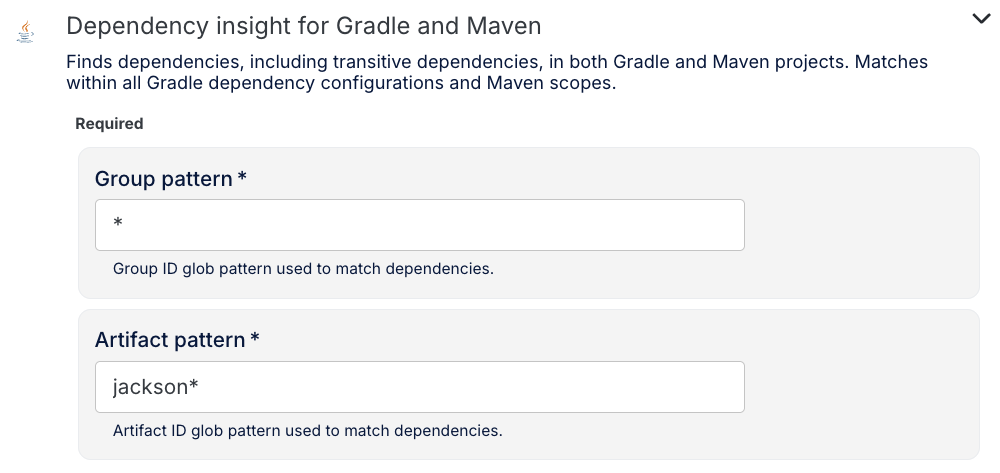
Dependency insight for Gradle and Maven. - Configure the options using a broad pattern to get results across many repositories:
- Group pattern:
* - Artifact pattern:
jackson* - You can leave all of the other options blank/default.
- Group pattern:
- Click Dry Run to kick off the recipe.
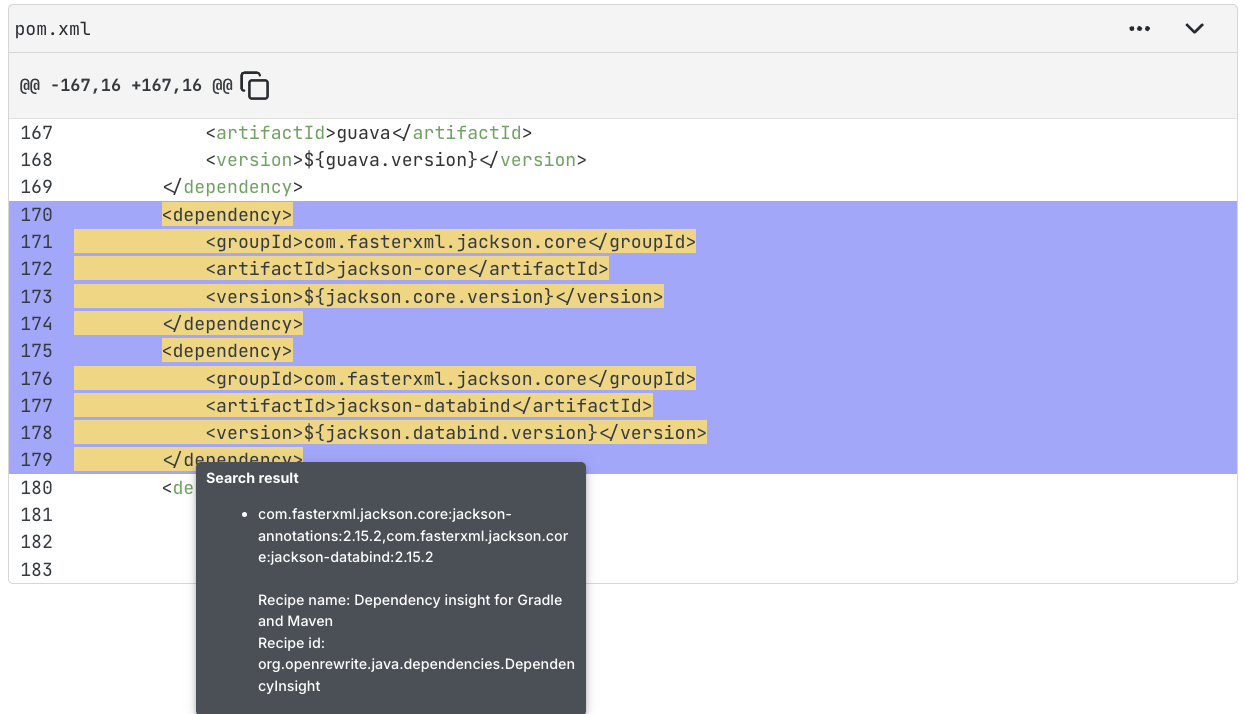
- When it's finished, notice the results don't show a diff with the usual red/green styling, but rather highlight the search results in yellow. The code still includes the markers as you saw in the previous exercise (e.g.
/*~~>*/), but the UI renders them as highlighted code to make it easier to see and understand. If you mouseover a highlighted portion, you will see some additional detail.
Step 2: Explore visualizations and download data tables in the platform
- From the recipe results page, open the
Visualizationstab and run theDependency usagevisualization.
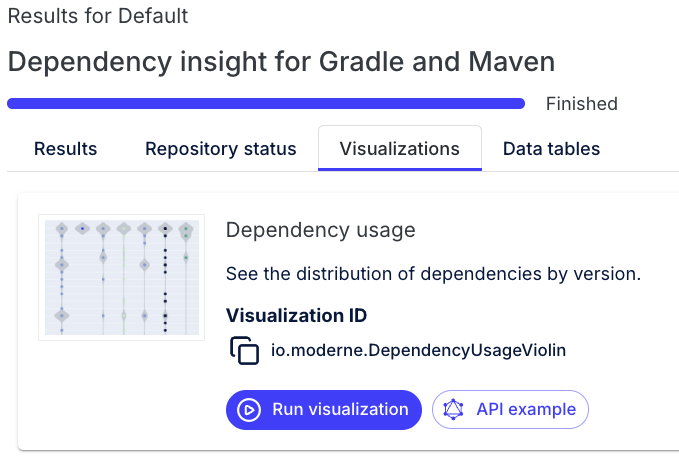
- Once it renders, you will see a violin chart showing the version distribution for the specified libraries across repositories.
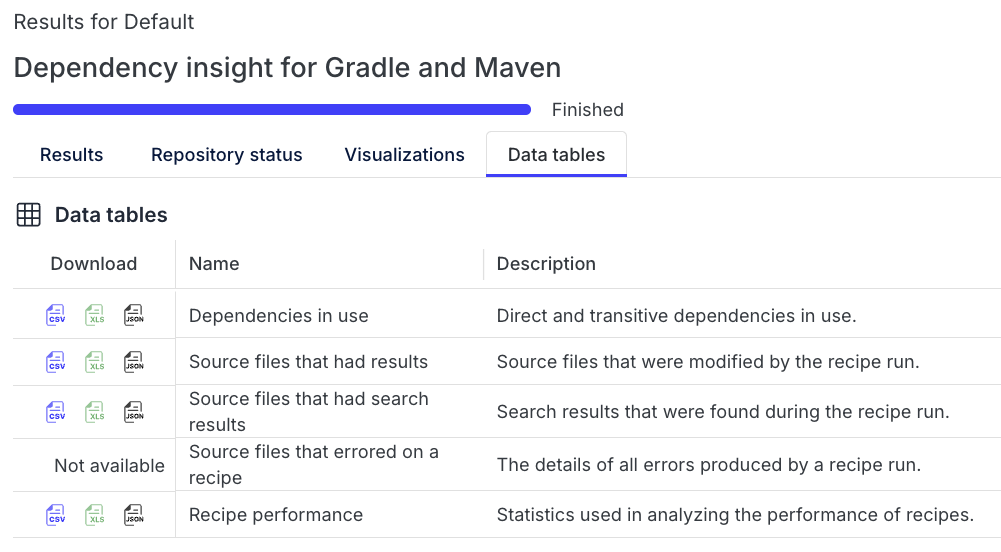
- Now return to the results screen and open the
Data Tablestab. Download theDependencies in usetable as a CSV or Excel file and open it in your preferred application for deeper analysis. This table is what's driving the underlying data for the visualization you just saw.
Step 3: Run a recipe that produces a vulnerability report
- To see one more kind of visualization, return to the Marketplace and search for the
Find and fix vulnerable dependenciesrecipe. - Run the recipe and click on the
Visualizationstab on the results page once it's completed. - Run the
Dependency vulnerability profilevisualization. You don't need to provide any options. - Once it renders, you will see a stacked bar chart representing dependency vulnerabilities categorized by severity level and fix type. Mouseover any of the bars for more detailed numbers.
- If you want to explore the corresponding data table as before, download the
Vulnerability reporton theData Tablestab to get the CSV.
Takeaways
- The Platform makes it easy to review results, download tables, and explore visualizations.
- Data tables are the source of “tabular” outputs. Visualizations are graphical views of those outputs.